
Current
Resize only the page currently displayed in Adobe Acrobat.
Oversized scanned pages can make annotations and sign-offs look microscopic. Scriptor™ lets you resize the current page, every page, or a selected page range in just a few clicks.
$59 per user/year · 7-day free trial
Scriptor™ also includes:
Problem and Solution
Scanned documents sometimes include pages with unusually large dimensions. When that happens, Acrobat annotations, tickmarks, stamps, and sign-offs can appear extremely small compared with the page.
Scriptor™ adds an Adobe Acrobat resize page workflow that scales both the selected PDF page and its existing contents. That helps oversized pages feel more proportional to the rest of the document.
How It Works
Scriptor™ works inside the desktop version of Adobe Acrobat, so you do not need to upload confidential documents to an online PDF resizing service.
Open the PDF in Adobe Acrobat and select Resize Page from Scriptor’s Repaginate menu.
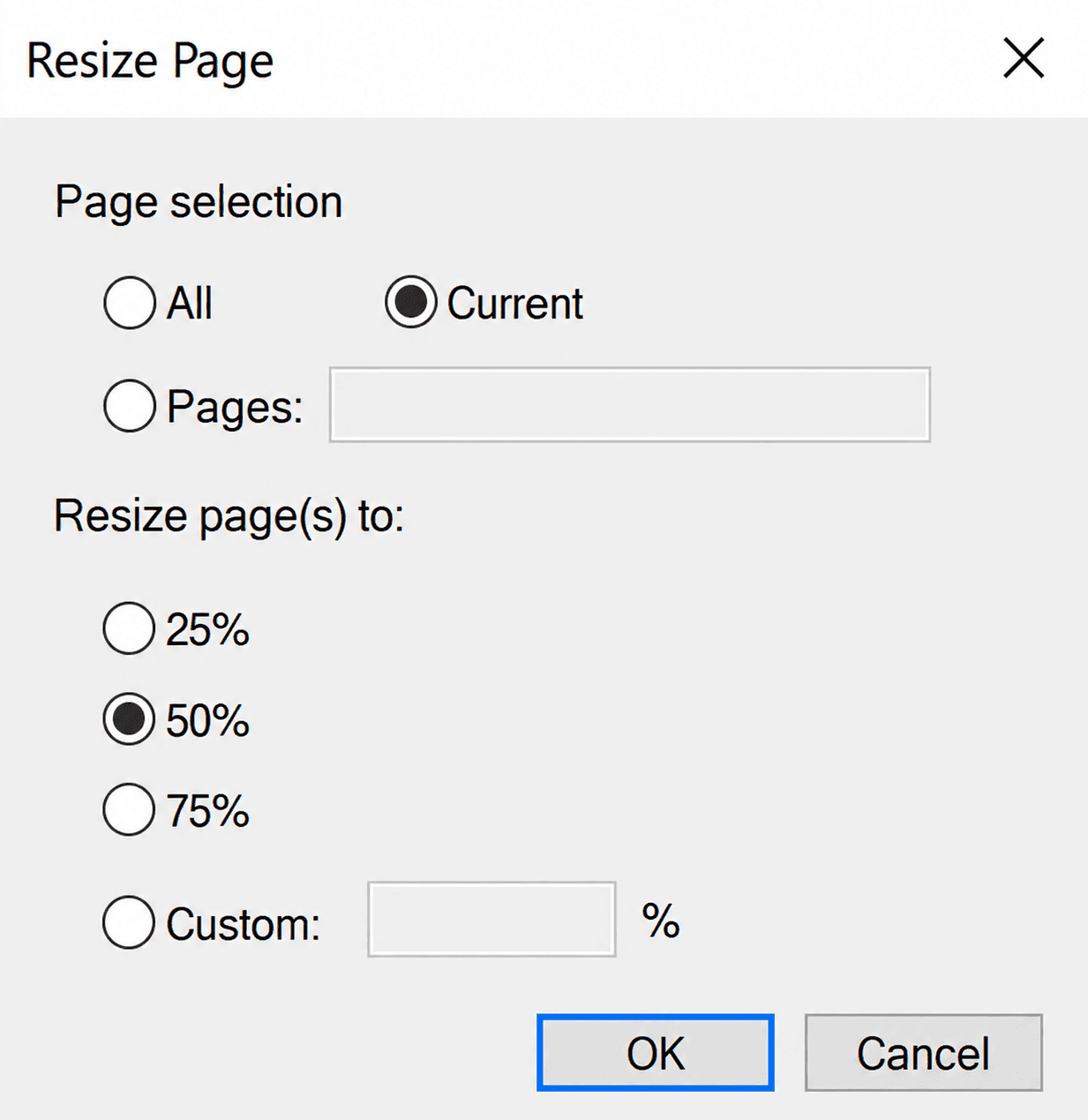
Choose the current page, all pages, or enter a selected page range.
Resize the selected pages to 25%, 50%, 75%, or a custom percentage.
Page Selection
Choose exactly where the page resize should apply, whether you need to resize one page in a PDF or update a longer page range.
Resize only the page currently displayed in Adobe Acrobat.
Apply the selected percentage to every page in the open PDF.
Enter the specific page, pages, or page range that should be resized.
Resize Options
Use 25%, 50%, 75%, or a custom percentage to change the size of a PDF page. This changes the scale and dimensions of the selected PDF pages and their content. It is not PDF compression.
Use a smaller preset when a scanned page is far larger than the surrounding document.
Quickly bring an oversized scan closer to a practical review size.
Make a moderate page-size adjustment while keeping more of the original scale.
Enter your own percentage when the preset PDF page resize choices are not the right fit.
Accounting Use Case
A client-provided or scanned document may include one unusually large page in the middle of otherwise normal workpapers. Review notes, stamps, and sign-offs can look tiny, and the page may feel inconsistent with the surrounding support.
Resizing only that page can make the workpaper easier to review, annotate, organize, and present consistently. Scriptor™ was created by a CPA for accounting workpaper workflows, but the same page-resize workflow helps any Acrobat user who needs to resize oversized scanned PDF pages without changing every page in the file.
FAQ
Open the PDF in desktop Adobe Acrobat Pro or Standard, choose Resize Page from Scriptor™'s Repaginate menu, select the pages to change, and choose a preset or custom percentage. The resize tool is provided by Scriptor™, not a native Acrobat command.
Yes. Choose Current to resize the page currently displayed, or use Pages to enter a single page number.
Yes. Use All for the entire PDF, or choose Pages and enter the page range that should be resized.
Yes. Scriptor™ includes preset choices for 25%, 50%, and 75%, plus a Custom option for entering another percentage.
No. Scriptor™'s Resize Page tool changes the scale and dimensions of selected PDF pages and their existing contents. It is not a PDF compression or file-size reduction tool.
Yes. Scriptor™ is a Windows add-in for the desktop versions of Adobe Acrobat Pro and Adobe Acrobat Standard.
No. Scriptor™ runs within desktop Adobe Acrobat, so the PDF does not need to be uploaded to a third-party online resizing website.
Scriptor™ Toolkit
Resize Page is just one of the tools included with Scriptor™. Built for accountants working in Adobe Acrobat, Scriptor™ also helps streamline workpaper markup, calculations, sign-offs, page organization, and file preparation.
Try the Tool
Scriptor™ helps you change PDF page size by percentage for the current page, every page, or selected page ranges inside Adobe Acrobat Pro or Standard. Annual licenses are $59/year per user, and the trial is free for 7 days.
Adobe and Adobe Acrobat are trademarks of Adobe. Scriptor™ is not affiliated with or endorsed by Adobe.